Quick Start Guide
For Front of House iPad Users
Step 1: Access the System
- Navigate to: https://chorltonplayers.com/box-office/admin/
- Log in with your Ticket Admin credentials (saved in iPad browser – password is CPTicketAdmin2022)
- Alternatively, ask a committee member to login with their credentials
Step 2: Select Performance
- The current show is selected by default
- Verify the correct show and date/time in the dropdown
- Change if needed for a different performance
Step 3: Track Attendance
- Use + and – buttons to mark attendance as customers arrive
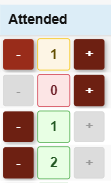
- Green = full attendance, Yellow = partial, Red = none
Step 4: Add Door Sales
- Click “Add Door Sale” button
- Enter customer name, select ticket type and quantity
- For Comp tickets: Include anyone with free tickets (services rendered, FoH volunteers watching the show)
- Process payment and add sale
Step 5: Monitor Totals
- Check the attendance summary at the top
- Verify all sales are recorded correctly
Introduction
Welcome to the Chorlton Players Box Office Admin system! This guide will help you navigate and use the box office administration features effectively.
Access the Box Office Admin: https://chorltonplayers.com/box-office/admin/
Access Requirements
This system is designed primarily for Front of House iPad use and is accessible to:
- Committee Members: Full access with member login
- Ticket Admin: Dedicated login for box office operations
Note: The Ticket Admin login should be remembered in the iPad browser. If you need to log in again, use the committee member credentials or contact the technical team for Ticket Admin access.
Overview
The Box Office Admin system provides tools for managing ticket sales, tracking attendance, and generating reports for Chorlton Players performances. The system integrates with StageShow to provide real-time data and streamlined workflows.
Key Features
- Performance Management: Select and view ticket sales for specific performances
- Door Sales: Add walk-up ticket sales at the venue
- Attendance Tracking: Mark and track who attended each performance
- Analytics: View detailed reports and statistics
- Real-time Updates: AJAX-powered interface for instant updates
Getting Started
1. Accessing the System (iPad)
- Open the iPad browser and navigate to https://chorltonplayers.com/box-office/admin/
- The system should automatically log in using saved Ticket Admin credentials
- If login is required, use committee member credentials or contact technical team for Ticket Admin access
- You’ll see the main Box Office Admin interface optimized for tablet use
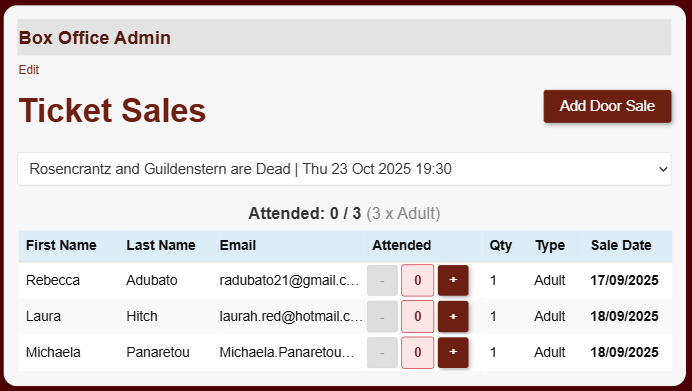
2. Performance Selection
The system automatically loads recent performances. To select the current performance:
- Use the Performance dropdown at the top of the page
- Select the current show and performance date/time
- The interface will update to show ticket sales for that performance
Main Features
Ticket Sales Management
Viewing Current Sales
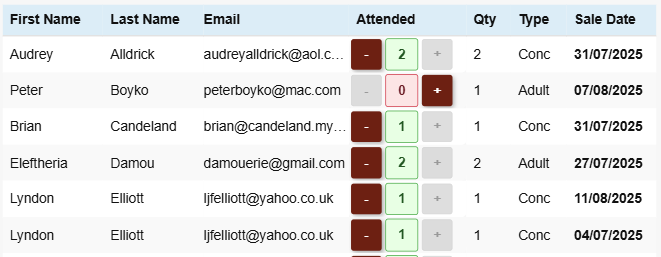
The main interface displays all completed ticket sales for the selected performance, organized by:
- Customer Name: First and last name
- Ticket Type: Adult, Concession, or Comp
- Quantity: Number of tickets
- Price: Individual ticket price
- Total: Total amount for that sale
- Sale Date: When the ticket was purchased
- Attendance Status: Current attendance tracking
Sales Summary
At the top of the sales list, you’ll see a summary showing:
- Total tickets sold
- Breakdown by ticket type (Adult, Concession, Comp)
- Current attendance count

Adding Door Sales
For walk-up ticket sales at the venue:
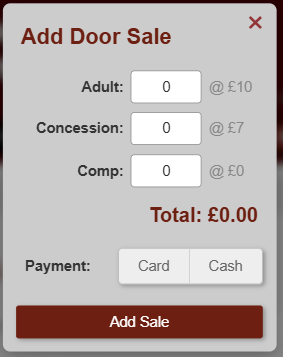
- Click the “Add Door Sale” button at the top of the page
- Fill in the door sale form:
- Customer Name: Enter first and last name
- Ticket Type: Select Adult, Concession, or Comp
- Quantity: Number of tickets
- Payment Type: Cash, Card, or Comp
- Click “Add Sale” to process the transaction
Important Notes:
- Door sales are automatically marked as “Door Sale” in the system
- Comp tickets are free and should be used for:
- People who have provided services in exchange for tickets
- Front of House volunteers who want to watch the show
- Any other complimentary ticket arrangements
- Comp tickets will automatically set the payment type to “Comp”
- Only Door Sales can be deleted from this interface
Attendance Tracking
Marking Attendance
To track who attended the performance:
- Find the customer in the sales list
- Use the + and – buttons to adjust attendance numbers
- The system will update in real-time via AJAX
- Color coding indicates attendance status:
Attendance Features
- Real-time Updates: Changes are saved immediately
- Quantity Limits: Cannot mark more attendance than tickets sold
- Visual Feedback: Color-coded inputs show current status
- Mobile Friendly: Works on tablets and mobile devices
Analytics and Reporting
Performance Analytics
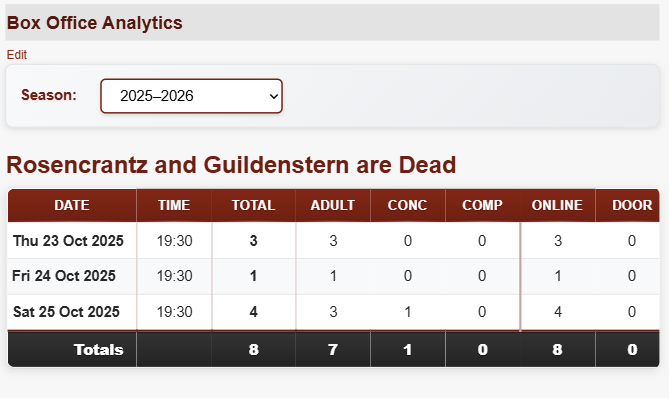
Access detailed analytics by navigating to the analytics section:
- Select the desired Season (July-June format)
- View comprehensive reports including:
- Performance-by-performance breakdown
- Ticket type distribution
- Online vs. Door sales comparison
- Total attendance figures
Report Features
- Seasonal View: Organize data by theatrical season
- Show Breakdown: Individual show performance data
- Sales Channels: Compare online vs. door sales
- Ticket Types: Adult, Concession, and Comp ticket analysis
- Mobile Responsive: Optimized for all device sizes
Mobile Interface
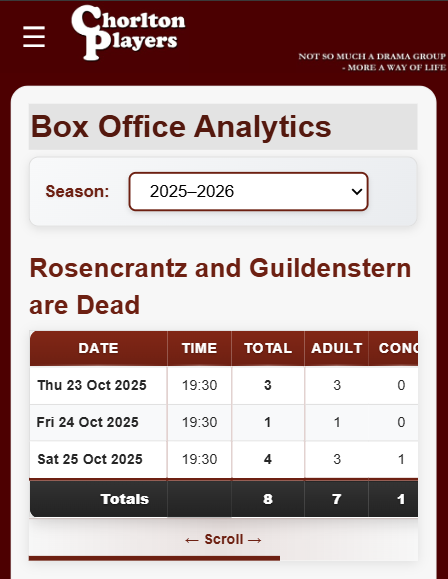
The system is fully responsive and works on mobile devices:
- Card Layout: Sales are displayed as cards on mobile
- Touch Controls: Easy-to-use buttons for attendance tracking
- Responsive Tables: Analytics tables adapt to screen size
- Optimized Forms: Door sale forms work well on mobile
Troubleshooting
Common Issues
“Page not accessible” message:
- Ensure you’re logged in with Ticket Admin credentials or committee member account
- Check that your membership is active and up to date
- Try clearing browser data and logging in again
iPad Login Issues:
- The Ticket Admin login should be remembered in the iPad browser
- If login is lost, use committee member credentials
- Contact technical team to restore Ticket Admin access
- Ensure iPad is connected to WiFi
Attendance not updating:
- Check your internet connection
- Try refreshing the page
- Ensure you’re not exceeding the ticket quantity limit
- Try tapping the buttons more firmly (iPad touch sensitivity)
Performance not showing:
- Verify the performance date is correct
- Check that the performance has completed ticket sales
- Try selecting a different performance
- Ensure iPad browser is up to date
Touch Interface Issues:
- Try rotating the iPad to landscape mode
- Ensure screen is clean and dry
- Try tapping buttons more deliberately
- Check if iPad case is interfering with touch
Getting Help
If you encounter issues not covered in this guide:
- Check your internet connection
- Try refreshing the page
- Clear your browser cache
- Restart the iPad browser
- Contact the Chorlton Players technical team
Security Features
The system includes several security measures:
- Member Authentication: Only active members can access the system
- WordPress Nonces: All forms are protected against CSRF attacks
- Data Validation: All inputs are validated and sanitized
- Limited Permissions: Only Door Sales can be deleted from this interface
Best Practices
For Box Office Staff
- Check Performance: Always verify you’re working with the correct performance
- Accurate Names: Use full names for door sales to avoid confusion
- Real-time Updates: Mark attendance as customers arrive
- Regular Saves: The system auto-saves, but verify changes are recorded
For Committee Members
- Review Analytics: Check performance data regularly
- Season Planning: Use historical data for future show planning
- Attendance Patterns: Monitor attendance trends for insights
- Data Accuracy: Ensure all sales and attendance are properly recorded
Technical Notes
- Browser Compatibility: Works with all modern browsers
- Mobile Support: Fully responsive design
- Real-time Updates: AJAX-powered for instant feedback
- Data Integration: Seamlessly integrates with StageShow database
This guide covers the main features of the Box Office Admin system. For additional support or feature requests, please contact the Chorlton Players technical team.
Last Updated: September 2025